Tech Program:
Goin’ to meetin’ — Joining (and leaving) a Zoom meeting

The video is available on our YouTube Tech Channel

Here is a loose transcript (actually the script I tried to work from):

Introduction

In the previous program, I showed you how to get the Zoom app onto your computer or mobile device by going to the appropriate store for mobile devices or to Zoom’s website for computers.

Today, I’ll go over how to join a Zoom meeting using a link, how to join the meeting if the link doesn’t work, and how to leave a meeting.

So let’s get started.

Joining from a link

Quite often, the invitation to a Zoom meeting is an e-mail you get from the meeting organizer. The email has a hot link to the meeting along with the ID and passcode for the meeting

Clicking on the link is the easiest way to join the meeting.

The first time that you use Zoom, your browser or email app will need permission to open the Zoom app.

Here we’re seeing a few types of the dialog boxes you could get. There are from Chrome, Safari, and Firefox.

Click the appropriate button, and the Zoom app will open and take you to the meeting.

Video, Sound, and getting let in

After Zoom opens, there are a couple steps to go through.

First you’ll need to choose whether to join with video or not. This only affects whether video is on as you join.

Whichever way you come into the meeting, you can still turn video on or off during the course of the meeting.

The default is to join with video, which is why that button has the eye-catching blue color.

So now you’ve joined the meeting.

Sort of.

The host needs to let you in still. They’ll get a notification with your and then click a button to let you in.

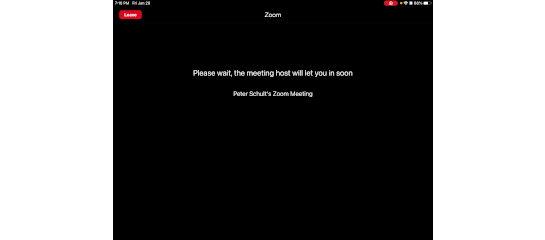
So, the host has let us in.

The last step is to allow the Zoom app to use your device’s audio, here worded “Call using internet audio.”

Click or touch that.

The audio bit is different from the earlier video choice. THe video choice was just about whether the camera is on: you can see what happens in the meeting whichever choice you make about the camera.

The audio authorization is for both your mic and speakers.

“Why would you want to join without sound?” you might wonder. Well, that’s something I’ll talk about next time.

Of course, after authorizing audio, you can still mute your mic, and for some meetings, everyone is muted by the organizers.

Joining from the ID/Passcode

So that’s how to get into the meeting using the link.

What if the link doesn’t work?

Sometimes it gets corrupted. For instance, it might get incompletely copied and pasted into the email you got, or it might be in a word processing document that corrupted it.

That’s when the meeting ID and passcode are useful.

You’ll need to either write down the meeting ID and passcode or use copy and paste on your device.

I like to copy and paste the passcode, anyway. I figure that since the ID is just a string of digits, that won’t be to confusing to write down and then enter in using a keyboard, but the passcode is a random string of all kinds of characters, and it matters whether each character is upper or lower case.

So here I’m copying the passcode. Off screen, I’ve written down the meeting ID.

Then I go to the home screen and open the Zoom app since everything has to be done by hand with this method.

Then click the Join button.

Now I type in the meeting ID.

Click Join.

Then I just paste the passcode in.

Now I’m in the meeting. At least I’m at the same point I’d be if I had been able to use a link. I still need to go through the steps with deciding about the camera, getting let in by the host, and authorizing audio.

Leaving the meeting

The last topic for today is leaving the meeting.

Within Zoom, touching the screen of a mobile device or moving the mouse on a computer shows the controls.

One of those is a big red button labeled Leave. Press that, then confirm, and you’re done.

Tech program:
Installing Zoom

The new year is here, and Maxwell’s technology blog posts are back.

While the pandemic continues to keep us from having in-person programs, it makes sense to demonstrate how to do things in video form rather than in text, so many of the posts here will basically be pointers to short YouTube tutorials.

Today’s video is about 7 minutes on installing Zoom since laptops & desktops present a couple of security hurdles to getting it up and running on them.

The January 28 post will continue the theme with a video on setting a Zoom account up and starting to use it.


Image credit:
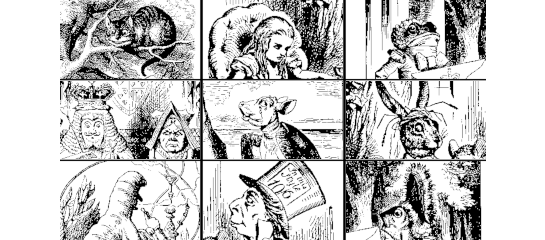
The individual participants in this mad Zoom meeting are excerpted from Sir John Tenniel’s illustrations for Alice in Wonderland.
License: Public Domain

Ebooks, Part 2: Hoopla

Last time I talked about how to get started on Overdrive, one of Maxwell’s vendors for ebooks, audiobooks, and other electronic material. Today’s post is about hoopla, the other vendor.

Getting started:
Looking at what’s available

Head over to hoopla’s website and click on the Browse Titles button about halfway down the page. The page you get taken to lets you browse the audiobooks that are available, but you can easily go to pages for other formats. Touch/hover the cursor over Browse in the page’s header. The dropdown menu that appears allows you to switch to any of the formats hoopla offers:

  • Audiobooks
  • Movies
  • Music
  • Comics
  • Ebooks
  • Television

Note that most of these categories are well represented in OCPL’s Overdrive collection as well. Music is the exception and is only in hoopla.

Whichever category you choose to browse, hoopla lets you select how to organize what you’re seeing by using the links

  • Featured
  • Popular
  • Categories

located just under the heading for the format you’ve chosen.1

Installing & setting up the app

You’ll need an account, but if you don’t already have one, you can install the app on your device first and then sign up through the app. Hoopla has a YouTube channel with several tutorials (as well as book talks). Here are links to their tutorials for getting the app and starting to use it:

And here’s the hoopla website:

Appendix: Why 2 vendors?

tl;dr: Hoopla allows instant gratification, but its potential cost means the library limits the number of items you can check out in a given month.

Since ebooks are physically just collections of bytes of data,2 it’s very easy to carry them around or to get access to them from any internet-connected location. However, just as books on paper are not only their physical manifestations as quantities of ink on paper, neither are ebooks only their bytes. Indeed, it doesn’t take much abstraction to view the real book one is talking about as being independent of either its ink-on-paper or magnetization-states-in-a-storage-medium representation.

This level of abstraction is the level where we say that the paper book and the ebook are the same thing. And from the author’s viewpoint this works since generally both formats contain everything the author put into the book’s creation. Thus, it is entirely reasonable that copyright law treats the formats identically: just as Maxwell can’t photocopy a book in the collection and lend both the original and the photocopy, we are limited in the number of copies of an ebook we can lend out at any one time to those “copies” (that is, licenses) we’ve legally acquired.

That preramble brings us to the primary distinction between Overdrive and hoopla from the standpoint of the access each vendor provides. Recall from last time that one of the things to notice while browsing titles in Overdrive is whether the title has a nice orange Available banner or a disappointing white Wait List banner. This is because OCPL buys a fixed number of licenses for each title in the collection. If you think of each license as analogous to a single ink-on-paper book, you can see3 how this results in the same sort of wait lists as paper books get.

Hoopla’s model is different. Instead of selling multiple licenses in a package deal, they charge the library for each item checked out. If Overdrive’s ebooks are like paper books we’ve bought and put on the shelf, hoopla’s are like books that we rent on demand and only on demand. This means that any number of patrons can check a given title out at once: we just pay hoopla the fee for each one, and hoopla pays its corresponding fees to the copyright holder.

The disadvantage of hoopla’s model (looking at it from the vantage point of the library’s budget) is that the potential costs are unlimited. With Overdrive we have a fixed rate for a fixed number of licenses, but there’s no definite cap to the costs for hoopla. That is why the libraries in OCPL that offer hoopla have set maximum numbers of items that patrons can check out in a month (Maxwell’s maximum is 6 per month).


1 Comics also lets you choose to browse by publishers or how recent an issue is since those criteria can be important for comics fans.

2 Well, the states of segments of solid-state memory or magnetic disks representing those bytes.

3 Especially if you’ve ever been #300 on the waiting list for a newly released book!

Ebooks: They’re Not Just for Quarantine Anymore

Since Maxwell won’t have in person programs till at least January, I’m going to start presenting Tech Programs as blog posts. Rather than having a big, “hour-long” post (as it were) once a month, though, I’ll post a briefer, more focused post every other Thursday.

Today’s post is an introduction to OverDrive, one of our vendors for ebooks, audiobooks, and other electronic material. On September 10 I’ll have a post on hoopla, the other vendor.


During the shutdown, many library patrons gained a certain appreciation for the availability of ebooks through Maxwell. While holding a glowing device to read is certainly not the same experience as holding and paging through a book in ink on paper, when we were unable to circulate those meatspace books, it was good to still be able to read their texts electronically.

Even in normal times, though, ebooks have some advantages that can make them the first choice on occasion:

  • You can adjust the size of the print or even the typeface itself for your own optimal comfort. This can be useful if, for example, the book you want to read isn’t available in large print or if you find certain typefaces harder to read.
  • Their marginal weight and volume are 0. That is, you can carry as many as you like on your device without increasing the weight of your device or how full your bags are at all. This is quite useful when taking a trip out of town.
  • Continuing the travel theme, they return themselves on the due date, so you don’t have to worry about staying too long at the beach, at the pyramids, or atop K2 with library books in your pack.

The best way to start with ebooks is to browse the collections. Here are links to OverDrive and hoopla:

For today’s post I’ll look at OverDrive. I’ll cover hoopla 2 weeks from now.

When you go to the OverDrive site, you see something you’re probably familiar with at tangible libraries: a display of new and popular books and audiobooks arranged in various groups. Here are the titles of the current browsing collections:

  • 19th Amendment 100 Year Anniversary
  • Guides to Antiracism
  • YA Books That Broke Our Heart
  • Keep Calm & Carry On: Kids Picks for Tough Times
  • Best of 2020 So Far
  • Books Written by Black Authors
  • Coping with Stress & Anxiety
  • Pride 2020
  • I’m Bored! Kids Activity Books
  • What are OCPL Patrons Reading?

Notice that across the top of each cover image there’s either an orange bar showing that the item is available or a white bar showing that there’s a wait list for it.

Banners reading 'Available' and 'Wait List'

Back at the top of the page is where to find the tools you can use to look for books & audio books.

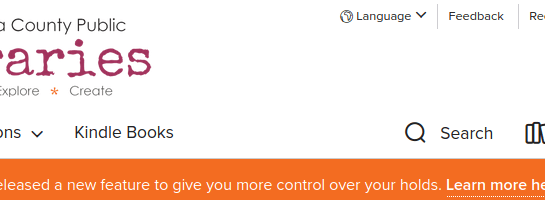
The Subjects link takes you to a page listing several fiction genres and a number of categories of nonfiction. Collections drops down to show you links to the 4 types of collections in OverDrive: ebooks, audiobooks, videos, and magazines. Kindle Books is useful if you have a Kindle; Kindles use Amazon’s proprietary format for ebooks and can’t use other formats, so it can be convenient to limit your search to titles that have a Kindle version. Lastly, Search drops down a search box where you can type in something to search on (often an author’s name or a specific title, but keywords or phrases related to what you’re looking for also work).

If you like some titles you find and want to check them out, you’ll need some way to read them on your device. For mobile devices or Windows machines, getting the app you need (Libby) and setting it up is pretty straightforward. Go to the appropriate “store,” …

install, … and start the app. Libby will guide you through the setup process (you’ll need the barcode from the back of your library card and your PIN), and then you’ll be able to check things out and read/watch/listen to them.

On a Mac or Linux machine, you can still use OverDrive, but there isn’t a version of Libby that runs natively. The most straightforward way to read things is to read them in your web browser.

Maxwell’s Got Talent

Thursdays
All ages

On Thursdays, we’re posting talent videos on our Facebook page!

Patrons of all ages are welcome to participate. You can sing, play an instrument, show off your karate moves, dance, juggle, tell a joke, memorize state capitals — anything that shows off your talents.

Send your video to Melissa at youthservices@maxwellmemoriallibrary.org or message us on Facebook, and we’ll share your videos!


Image: Highway Sign: Talent
Creator: Nick Youngson
Licensor: R M Media Ltd
License: CC BY-SA 3.0