Zoom fatigue

What the recent research says

There have been a few articles over the last week or so about some studies coming out of Stanford University on Zoom fatigue — the energy drain that many people report after spending time in videoconferences.

One thing that is important to keep in mind is that the research so far is at least somewhat tentative: the peer reviewed study by Jeremy Bailenson only lays out the theory and the design of the empirical study; the results of that empirical study are still undergoing peer review. Hence, Dr. Bailenson cautions readers of his solo paper that they “should consider [his] claims to be arguments, not yet scientific findings.”

He presents four possible causes for Zoom fatigue:

  • The higher than normal levels of both the number of people looking at one and the amount of time under their gaze and the (perceived) smaller than normal distance from those doing the looking
  • The cognitive load from
    • Having to send effective nonverbal cues in an environment that makes in-person cues less effective
    • Having to learn how to read the nonverbal cues or filter out irrelevant physical gestures and movements of others within the environment of a teleconference
  • The higher than normal self-consciousness from seeing oneself on the screen for long periods
  • Reduced mobility compared with meat-space meetings in order to remain visible on others’ screens

The empirical study by Dr. Bailenson and his colleagues (Fauville et al.) looked at the experiences of samples of people who were in more than one video teleconference per day. From the data the researchers collected, they developed a tool for measuring Zoom fatigue, the Zoom Exhaustion & Fatigue Scale (ZEF Scale). The scale uses five factors:

  • General fatigue
  • Visual fatigue
  • Social fatigue
  • Motivational fatigue
  • Emotional fatigue

If you are interested in seeing where you lie on the ZEF Scale, you can fill out the Stanford group’s questionaire. It reports results in percentiles, so you can see how your levels of Zoom fatigue compare with those of others (while adding data to the researchers’ dataset).

My post in 2 weeks will be a video post on our YouTube channel demonstrating some possible ways to reduce Zoom fatigue.

Articles

Bailenson, Jeremy N. “Nonverbal Overload: A Theoretical Argument for the Causes of Zoom Fatigue.” Technology, Mind, and Behavior 2, no. 1 (February 23, 2021). https://doi.org/10.1037/tmb0000030

Fauville, Geraldine, Mufan Luo, Anna C. M. Queiroz, Jeremy N. Bailenson, and
Jeff Hancock. “Zoom Exhaustion & Fatigue Scale.” SSRN Electronic Journal , 2021. https://doi.org/10.2139/ssrn.3786329

Haridy, Rich. “Stanford Study into ‘Zoom Fatigue’ Explains Why Video Chats Are so Tiring.” New Atlas , February 23, 2021. https://newatlas.com/telecommunications/zoom-fatigue-video-exhaustion-tips-help-stanford/

Ramachandran, Vignesh. “Four Causes for ‘Zoom Fatigue’ and Their Solutions.” Stanford News (blog), February 23, 2021. https://news.stanford.edu/2021/02/23/four-causes-zoom-fatigue-solutions/

Smith, Dale. “‘Zoom Fatigue’ Is Apparently a Real Thing, and Now Researchers
Know What Causes It.” CNET , March 2, 2021. https://www.cnet.com/health/zoom-fatigue-is-apparently-a-real-thing-and-now-researchers-know-what-causes-it/


Image credit:
Chronic fatigue syndrome by Shanghai killer whale
License: CC BY-SA 3.0

Tech Program: Dealing with Zoom audio

The video for this program is available on Maxwell’s YouTube Tech Channel.

Here is a transcript of the program:

What might cause echoing or whistling

So today’s video’s gonna be fairly short. I just want to talk about how to deal with audio issues that come up when you have more than one device in basically the same room or close proximity to each other.

You might ask, “Well, why would you do that?” if you haven’t already experienced this. Sometimes it that… Say you’re in a family Zoom meeting or something like that, and everybody in the household is on their own device and wants to be in the same room.

Well, the difficulty you can get from that is that because everything’s got a mic and everything’s got a speaker, the sound comes out of the speakers and goes into the mic[s]. Now if you’re just on 1 device, Zoom takes care of that because it basically… your mic… the programming is such that (I’m not sure of the details, but) basically it can ignore the sound that’s coming from your speaker (If you’re not the speaker, it may just turn off your mic, I don’t know), but in any case the sound from your speakers is not going into your mic or at least your mic is not transmitting it to the rest of the meeting, and so you don’t get the feedback from that.

But if you’ve got more than 1 device, that safety is off,1 so you’re going to get feedback. I’ll give you an example of that now.

[Clip with unintelligible echoing speech and chirping from feedback]

That showed some of the aspects of that feedback where you’ve got echoing in what you’re saying, and so it becomes hard to understand, if not impossible to understand. And then when it gets enough, you start to get a whistling from the feedback of the general noise.

So you don’t want that.

How to solve the problem… kinda

So there are a couple,… a few solutions.

One is… everybody in separate rooms. And that certainly works.

Another is everybody shares 1 device. Y’know, sort of all crowd onto the couch or whatever and everybody’s in the same camera and can look at the same screen.

But there is another possibility if everybody… if more than 1 device is desired in this meeting, and that is to disconnect the audio [on all devices except for 1].

Now a sort of simple solution that sometimes works is just to turn the volume as far down [as you can] or off on all the devices but 1. And that often works. The difficulty with it is that the microphones are still active, so they’re still feeding things back into the meeting. The Zoom delay probably means that that [the low volume level being picked up by the mics of devices you’re not speaking directly into] won’t make much of a difference (though if you’re in the same room it might): if little enough sound is coming out of your speakers [and you’re not speaking into any “inactive” mics], it’s not gonna cause problems (or generally won’t: you might get the occasional whistle from feedback and then move on).

How to solve the problem… really

So that’s 1 option: Just turn the volume all the way down. What I’m gonna show you, though, is how to disconnect the audio. Now I’m gonna be showing it on an Android, but other systems have a similar way within Zoom to just disconnect the audio from Zoom.

So let’s look at this [clip].

Audio from clip is echoing. Its content is:

So on an Android,

  1. Bring up More settings
  2. You want to go to Disconnect Audio

Echoing ends

And voilà! So now there’s… so now the Android is not… there’s no sound coming out of it, there’s no… it’s not picking up on any sound. All the sound is going through my laptop, which is still connected [for audio].

So what I was saying as I was disconnecting the audio was probably a bit hard to understand. So let’s look at that [clip] again with the [clip’s] audio off from the meeting, and I’ll walk through the steps to disconnect the audio there.

Clip with original audio deleted but with added narration:

  1. We touch the screen to bring up the controls
  2. Then we touch the More… the 3 dots labeled More
    That brings up the control… more controls
  3. We touch Disconnect Audio

And now the audio’s gone.

So that’s how to disconnect audio completely on a device [from within] Zoom.

OK, till next time, Bye!

Notes

1. I realized that my wording might give the mistaken impression that Zoom is detecting 2 devices and turning something off. What I meant by the “safety” being off was that if you have 2 or more devices close to each other and all are logged into the meeting, then even though Zoom still doesn’t feed sound from any 1 device’s speakers back through that device’s microphone, it doesn’t coordinate the collection of devices. The result is that the sound from each device’s speakers can get to the microphone of the others, and then the sound does get fed back into the meeting audio.


Image credit:
Derived from 50Hz sine by Sogning
License: Public Domain

Tech Program:
Goin’ to meetin’ — Joining (and leaving) a Zoom meeting

The video is available on our YouTube Tech Channel

Here is a loose transcript (actually the script I tried to work from):

Introduction

In the previous program, I showed you how to get the Zoom app onto your computer or mobile device by going to the appropriate store for mobile devices or to Zoom’s website for computers.

Today, I’ll go over how to join a Zoom meeting using a link, how to join the meeting if the link doesn’t work, and how to leave a meeting.

So let’s get started.

Joining from a link

Quite often, the invitation to a Zoom meeting is an e-mail you get from the meeting organizer. The email has a hot link to the meeting along with the ID and passcode for the meeting

Clicking on the link is the easiest way to join the meeting.

The first time that you use Zoom, your browser or email app will need permission to open the Zoom app.

Here we’re seeing a few types of the dialog boxes you could get. There are from Chrome, Safari, and Firefox.

Click the appropriate button, and the Zoom app will open and take you to the meeting.

Video, Sound, and getting let in

After Zoom opens, there are a couple steps to go through.

First you’ll need to choose whether to join with video or not. This only affects whether video is on as you join.

Whichever way you come into the meeting, you can still turn video on or off during the course of the meeting.

The default is to join with video, which is why that button has the eye-catching blue color.

So now you’ve joined the meeting.

Sort of.

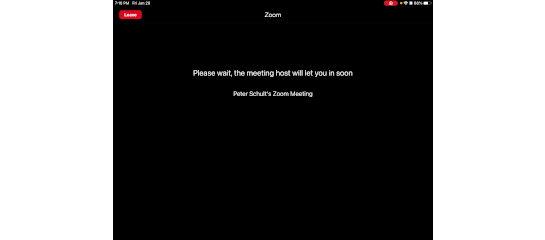
The host needs to let you in still. They’ll get a notification with your and then click a button to let you in.

So, the host has let us in.

The last step is to allow the Zoom app to use your device’s audio, here worded “Call using internet audio.”

Click or touch that.

The audio bit is different from the earlier video choice. THe video choice was just about whether the camera is on: you can see what happens in the meeting whichever choice you make about the camera.

The audio authorization is for both your mic and speakers.

“Why would you want to join without sound?” you might wonder. Well, that’s something I’ll talk about next time.

Of course, after authorizing audio, you can still mute your mic, and for some meetings, everyone is muted by the organizers.

Joining from the ID/Passcode

So that’s how to get into the meeting using the link.

What if the link doesn’t work?

Sometimes it gets corrupted. For instance, it might get incompletely copied and pasted into the email you got, or it might be in a word processing document that corrupted it.

That’s when the meeting ID and passcode are useful.

You’ll need to either write down the meeting ID and passcode or use copy and paste on your device.

I like to copy and paste the passcode, anyway. I figure that since the ID is just a string of digits, that won’t be to confusing to write down and then enter in using a keyboard, but the passcode is a random string of all kinds of characters, and it matters whether each character is upper or lower case.

So here I’m copying the passcode. Off screen, I’ve written down the meeting ID.

Then I go to the home screen and open the Zoom app since everything has to be done by hand with this method.

Then click the Join button.

Now I type in the meeting ID.

Click Join.

Then I just paste the passcode in.

Now I’m in the meeting. At least I’m at the same point I’d be if I had been able to use a link. I still need to go through the steps with deciding about the camera, getting let in by the host, and authorizing audio.

Leaving the meeting

The last topic for today is leaving the meeting.

Within Zoom, touching the screen of a mobile device or moving the mouse on a computer shows the controls.

One of those is a big red button labeled Leave. Press that, then confirm, and you’re done.

Tech program:
Installing Zoom

The new year is here, and Maxwell’s technology blog posts are back.

While the pandemic continues to keep us from having in-person programs, it makes sense to demonstrate how to do things in video form rather than in text, so many of the posts here will basically be pointers to short YouTube tutorials.

Today’s video is about 7 minutes on installing Zoom since laptops & desktops present a couple of security hurdles to getting it up and running on them.

The January 28 post will continue the theme with a video on setting a Zoom account up and starting to use it.


Image credit:
The individual participants in this mad Zoom meeting are excerpted from Sir John Tenniel’s illustrations for Alice in Wonderland.
License: Public Domain

Using Zoom: Some basic issues

Since the SARS-CoV-2 virus appeared and the COVID-19 pandemic began, many of us have had to learn how to use video conferencing tools. One of the most heavily used of these tools has been Zoom. Indeed, Zoom Video Communications’ CEO, Eric S. Yuan, blogged about the 20-fold increase in daily usage in the 4 months from December 2019 through March 2020 when numbers went from about 10 million to 200 million daily meeting participants.1 In the same post, he talks about some of the issues that the explosion in the number of users caused for the company:

  • The platform had originally been designed for enterprise use, so they had been able to assume that users would have in-house IT support.
  • Thus, when it was being used pretty universally, they had to quickly change their approach to make the application usable by people who would be dependent on Zoom’s resources and user friendliness.

Zoom’s resources

First, go to Zoom’s page “Support During the COVID-19 Pandemic” and bookmark it. This page is effectively the Table of Contents for help with Zoom, and it has links for tutorials, demos, training sessions, tip sheets, and blog posts on

  • Getting started with Zoom
  • Privacy and security
  • Teaching via Zoom
  • Using Zoom in the workplace/home office
  • Running group meetings on Zoom
  • Using Zoom in healthcare settings

Next, visit and bookmark Zoom’s FAQ. The links here are the most frequently needed ones. In particular, there is a brief Troubleshooting section at the bottom of the page, and I’ll now talk about the issues that section addresses.2

The Two most common problems with multimedia are the audio and the video

The Troubleshooting section of Zoom’s FAQ has only 3 issues, but they are probably the 3 most common problems I’ve had to help people with:

Rather than duplicate what’s on these 3 pages (especially since what you do to work through a problem depends on your platform), I’d suggest visiting them and the general Troubleshooting page if a problem comes up.

What I will do, though, is to give some general tips:

  • One cause of audio and video breaking up is insufficient bandwidth. Ideally, you’d have a hardwired connection, but if you’re using wi-fi, you can try moving closer to your router. If that doesn’t work, try turning off video and just using audio.
  • In a zoom window, look for the microphone & camera icons at the bottom of the window. Clicking on either icon toggles that aspect on or off. Clicking the up-arrow allows you to get to the settings screens.
  • In the audio settings screen, you can test whether Zoom is hooking up with audio by pressing the Test Speaker button.

Notes

1 Eric S. Yuan, “A Message to Our Users,” Zoom Blog, April 1, 2020, https://blog.zoom.us/a-message-to-our-users/

2 The general Troubleshooting page has links to these 3 topics and several others.

Articles

Wikipedia. “Zoom (Software).” Last edited September 22, 2020, at 18:18 (UTC). https://en.wikipedia.org/wiki/Zoom_(software)

Wikipedia. “Zoom Video Communications.” Last edited September 22, 2020, at 07:21 (UTC). https://en.wikipedia.org/wiki/Zoom_Video_Communications

Yuan, Eric S. “A Message to Our Users.” Zoom Blog. April 1, 2020. https://blog.zoom.us/a-message-to-our-users/

How Do We Address the Climate Emergency?

You can attend this important discussion from the comfort of your own home via Zoom! We are pleased to be able to reschedule it from its original date back in March.


Thursday, July 16, 7:00 to 8:30 PM
Free
Registration required
Virtual via Zoom

Climate change and its associated impacts are among the most serious of concerns confronting us today. The topic is the subject of news reports, political debates, and popular fiction and cinema. But how much does the average person—and even the average public figure—really know about the climate emergency? Why do some people downplay its impact on our world while others see it as the deadliest threat to life as we know it?

Maxwell Library invites the public to a very special virtual workshop designed both to educate and to promote communication with the goal of clarifying the major scientific and political aspects of this issue. Peter F. Cannavò, Hilary McManus, and Sarah Pralle will each speak on their individual areas of expertise and then open a group discussion. This public talk is co-sponsored by the Central New York Scholars Strategy Network.

You will join the discussion through your computer, tablet, or smartphone. After registering, you will receive a confirmation email containing information on how to join the meeting


Hilary McManus is Director of the Environmental Sciences Program and Associate Professor in the Department of Biological and Environmental Sciences at LeMoyne College, Syracuse. Hilary teaches a variety of topics including botany, evolution, and environmental issues. She was a 2018 participant in the global leadership development initiative for women in STEM: Homeward Bound and is a trained Climate Reality Leader. Hilary delivers presentations with interactive components that offer audience members an opportunity to brainstorm climate action items on individual, community, and policy levels.

Sarah Pralle is an associate professor of political science at Syracuse University. Her research and teaching interests are in the area of environmental politics and policy, with a focus on how advocacy groups affect the policy process.

Peter F. Cannavò is a professor of government at Hamilton College and Co-Director of the CNY Chapter of Scholars Strategy Network (SSN), an organization dedicated to public and policy outreach and engagement by scholars. His research and teaching focus on the interactions between environmental problems and social and political theory.

June Board Meeting

The Board’s monthly meeting will be at 6 PM on Monday, June 15. It will take place on Zoom, so if you would like to attend, send an email to Alyssa to get a Zoom invitation.

The agenda is now online.